

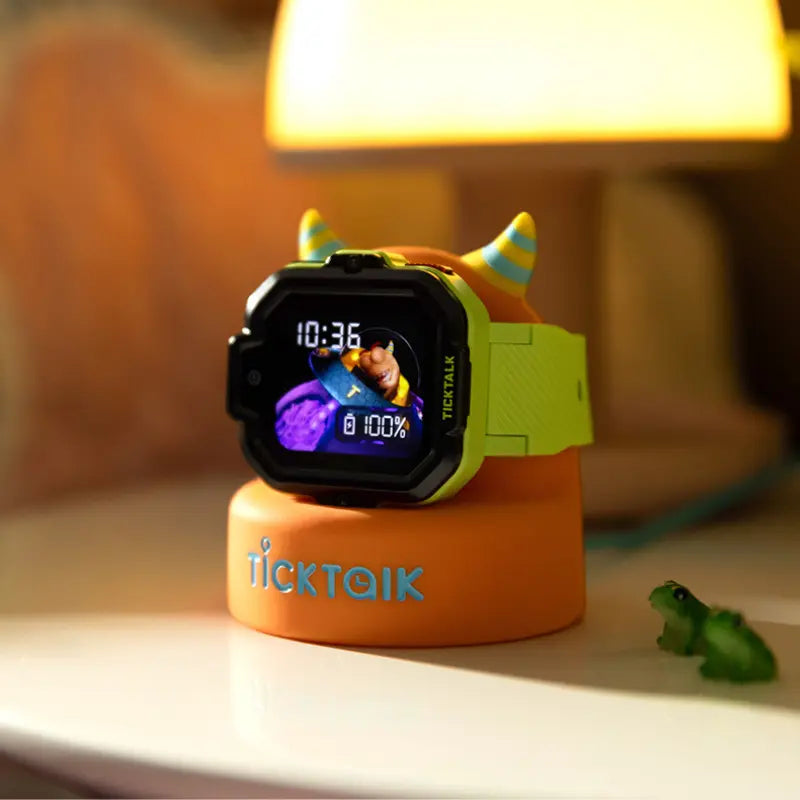
Setting up a kids smartwatch for the first time raises a lot of practical questions: Does it work with my iPhone? What carrier does it need? How do I pair it to my phone? This guide walks through every stage of the process, from unboxing and SIM activation to pairing the TickTalk Parental Control App on both iOS and Android. Whether you are new to kids' smartwatches or upgrading an existing device, this step-by-step FAQ is built to get your family connected quickly and confidently.
What Is a Kids Smartwatch?
A kids smartwatch is a wrist-worn communication and safety device designed specifically for children. Unlike a general-purpose smartwatch built for adults, a kids smartwatch is engineered around a single purpose: keeping a child connected to their family while giving parents direct control over who can reach their child and where their child is at any time.
TickTalk 5 is the current flagship in this category. It is a 4G LTE kids' smartwatch built for children ages 3 to 12. It supports HD voice calling, FaceTalk video calls, secure messaging, real-time GPS tracking with AI SmartPin location correction, SOS and 911 calling (U.S. only), free music, and more than 40 parental controls, all without internet access, social media, or an open app store. The device operates on its own SIM card and cellular plan, giving it full standalone functionality independent of a parent's phone.
Why Kids Smartwatch Setup Matters in 2026
The way families manage independence and connection has shifted considerably. As awareness of smartphone-related risks for children continues to grow, more parents are looking for a middle ground: a device that keeps kids reachable without handing them unchecked access to the internet. That practical demand is what makes proper setup so important.
A kids smartwatch only delivers its safety benefits when it is correctly configured. A watch that is improperly activated, unpaired, or missing key permission settings may fail to show accurate location data, fail to ring when a child calls, or fail to send SOS alerts to the right contacts. Getting the setup right from the start is what transforms a piece of hardware into a reliable family safety tool. TickTalk was built by parents who understood this, and the setup process reflects that priority at every step.
Common Setup Challenges and How to Solve Them
Most setup difficulties come down to a small number of predictable issues. Understanding them before you begin makes the process significantly smoother.
Challenges Parents Frequently Encounter
- SIM activation timing: SIM activation does not happen instantly. The process can take up to 48 hours for TickTalk Wireless. Trying to use the watch before activation is complete is one of the most common sources of confusion.
- OS version mismatch: The watch must be updated to the correct operating system version before SIM activation can complete successfully. Skipping the firmware update step causes SIM reading failures.
- App permission gaps on iPhone: iOS requires parents to grant specific permission settings, including location access set to "Always Allow" and notifications set to "Allow," during the first minutes of setup. Selecting the wrong option during the iOS permission prompts will break GPS tracking the moment the parent's screen locks.
- Network incompatibility: TickTalk 5 uses GSM technology and is designed for AT&T or T-Mobile networks. It is not compatible with Verizon or Sprint proprietary plans.
- Contacts not configured: A watch that has no approved contacts configured cannot make or receive calls. Setting up Parent Shortcut Dial Icons and Emergency SOS contacts is a required step before the watch is genuinely functional.
TickTalk addresses each of these challenges directly in its setup guide and support documentation. The TickTalk Parental Control App walks the parent through every required step, and the TickTalk support team is available for any issues that arise during activation.
What to Look for in a Kids Smartwatch Setup Process
A well-designed setup process should be something a parent can complete in under an hour without technical expertise. It should be clear, linear, and hard to get wrong. Before committing to any kids' smartwatch, it is worth evaluating whether the setup experience meets the following standards.
Must-Have Features of a Sound Setup Experience
- Pre-installed SIM: Having the SIM already installed in the watch eliminates a fiddly hardware step for new users.
- Clear ICCID location: The SIM card ICCID number, required to activate the plan, should be easy to find on the packaging and on the watch itself.
- Companion app availability on both iOS and Android: The parental control app must be available on both major platforms so that households with a mix of iPhone and Android devices can all participate.
- QR-code pairing: A QR-code-based pairing step removes manual entry errors when connecting the watch to the app.
- Guided contact setup: The setup flow should prompt parents to create emergency contacts and shortcut dial icons before the watch is considered ready to use.
- Firmware update prompt: The setup should surface any required OS updates automatically rather than leaving parents to find them independently.
TickTalk 5 meets each of these criteria. For U.S. customers who choose an AT&T or T-Mobile SIM at the time of purchase, the SIM chip is already pre-installed in the watch. The ICCID number is printed on the shipping box, on the watch sleeve, and can also be found on the watch itself by navigating to Settings and then About Me. The TickTalk App is available on both the Apple App Store and Google Play Store. Pairing is completed by scanning a QR code displayed in the watch settings, and the setup flow actively prompts parents to configure emergency contacts before finishing.
Step-by-Step: How to Set Up a TickTalk 5 Kids Smartwatch
This section covers the complete setup process from unboxing to first use. Follow each step in order for the smoothest experience.
Step 1: Charge the Watch Before Anything Else
Before starting setup, charge TickTalk 5 fully using the included charging cord or PowerBase. This ensures the watch does not power off mid-setup during an OS update or SIM activation.
Step 2: Connect the Watch to Wi-Fi and Update the OS
Turn on the watch and go to Settings, then Wi-Fi. Connect to your home network or, if that is not available, use your phone's mobile hotspot temporarily. Once connected, return to Settings, select OS Update, and install the latest version. The watch must be on OS version 5.5.0 or later for SIM activation to complete successfully.
Step 3: Activate Your TickTalk Wireless SIM Card
Locate your ICCID number. For most U.S. customers, the SIM is already pre-installed in the watch, and the ICCID number appears on the shipping box and colored watch sleeve. If you no longer have the packaging, find the number on the watch by going to Settings and then About Me. Visit the TickTalk Wireless activation page, enter or scan your ICCID number, choose your plan (starting at $9.99/month plus tax, no contracts, no activation fees), and complete the account setup. Activation can take up to 48 hours. Once complete, you will receive a confirmation email with your watch's dedicated phone number.
Step 4: Download the TickTalk Parental Control App
On your smartphone, visit the Apple App Store or Google Play Store and search for TickTalk. Download the free TickTalk App. After downloading, you will be prompted to create a parent account and choose your sign-in method. If you choose text verification, you will sign in with your phone number going forward. If you choose email verification, you will use your email.
Step 5: Pair the Watch to the App Using the QR Code
On the watch, go to Settings and then Pair. You will see the watch's TTID number and a QR code. In the TickTalk App, tap the contact icon in the upper left-hand corner and select Add Another TickTalk. Scan the QR code displayed on the watch. When the pairing request appears on the watch screen, tap Confirm to finalize the connection. Optionally, enter your child's profile information, including their name and birthdate, in the app.
Step 6: Configure Emergency Contacts and Parent Shortcut Dial Icons
In the TickTalk App, select the Contact icon in the bottom left-hand corner. You will see three shortcut options. The two Parent Shortcut Dial Icons appear directly on the child's watch face and allow the child to reach a trusted adult with a single tap. These can be two parents, a parent and a guardian, or any two trusted adults. The Emergency SOS contact is the number the watch calls automatically if the child holds the red side button for five seconds. If the SOS contact does not answer, the watch will automatically call the first two Parent Shortcut Dial icon contacts in sequence.
Step 7: Add Approved Contacts and Block Unknown Numbers
Once your primary contacts are set, add any additional trusted contacts to your contact list. You can save up to 50 approved contacts beyond your two Parent Shortcut Dial Icons and Emergency SOS contact. After adding contacts, navigate to the Parent Portal in the app and enable the Block Unknown Numbers setting. This prevents any unrecognized number from calling or messaging your child through the watch.
Step 8: Confirm Signal and Test a Call
Swipe up on the watch screen to open the Status Center. You will see your carrier name, signal bars, and a connection symbol. The connection symbol will turn white when the watch is successfully connected to the network. Make a test call to confirm everything is working. If the watch shows "No Service," first confirm that your SIM activation is complete, then check that the OS is fully updated.
Does a Kids Smartwatch Work with iPhone?
This is one of the most common questions parents ask, and the answer depends on the type of kids smartwatch you are using. For TickTalk 5, the answer is yes, it works fully with iPhone. The TickTalk Parental Control App is available on the Apple App Store and runs on iOS. Parents with iPhones manage the watch the same way Android users do: through the TickTalk App, which serves as the control center for contacts, location, settings, and all parental controls.
It is worth clarifying that TickTalk 5 is not a Bluetooth accessory for your iPhone. It is a standalone 4G LTE device that has its own SIM card and phone number. It operates independently of the parent's phone. The TickTalk App on your iPhone communicates with the watch over the cellular network, not over a local Bluetooth or Wi-Fi connection. This means the watch works wherever there is 4G LTE coverage, whether or not your iPhone is nearby.
iPhone-Specific Setup: Key Permission Settings
When setting up the TickTalk App on an iPhone, iOS will prompt you to grant several permissions. These settings matter and should be configured carefully during initial setup. Specifically:
- Location Services: Set to "Always Allow." If you select "While Using the App," GPS tracking will stop functioning the moment your iPhone screen locks.
- Notifications: Set to "Allow." This ensures incoming calls from your child ring on your phone.
- Critical Alerts: Enable this option if it appears. It allows SOS alerts to bypass your iPhone's Do Not Disturb settings, which is important for emergency notifications.
Taking two minutes to confirm these permissions during setup prevents the most common iPhone-related issues that parents encounter after the fact.
Does a Kids Smartwatch Work with Android?
The TickTalk Parental Control App is fully available on Android through the Google Play Store. Android users complete the same setup and pairing steps described above. There is one Android-specific consideration worth knowing: many Android devices have aggressive battery-saving modes that can pause background apps. If this setting is active, the TickTalk App may not receive continuous location updates or incoming call notifications.
To prevent this, navigate to Settings, then Apps, then the TickTalk App, and then Battery. Change the battery setting to Unrestricted. This tells Android not to suspend the app in the background, which keeps location updates and notifications running reliably around the clock. Android users who allow contacts access during sign-in will also find it easier to populate the watch's trusted contact list directly from their existing address book.
How Families Use TickTalk 5 to Stay Connected Day to Day
Setup is the foundation, but the value of a kids smartwatch reveals itself in how families use it across real daily routines. TickTalk 5 is designed for the practical moments that make up a child's week.
- School commutes: Parents can see their child's location moving in real time during a walk or bus ride home and receive a notification when the child arrives at a saved location using AI SmartPin.
- After-school activities: FaceTalk video calls let parents check in visually when a child is at sports practice, a friend's house, or a relative's home.
- Split households: The TickTalk App allows one primary admin account and additional users with either Full Access or Limited Access. Full Access users can view location, manage contacts, and use Remote Answer. Limited Access users can call, message, and video chat. This structure works well for co-parenting arrangements or for adding grandparents and caregivers.
- School hours: Parents can enable Do Not Disturb Focus Mode in the TickTalk App to schedule specific time blocks when the watch locks into a simple clock face and restricts non-essential features, helping the watch comply with school policies around wearable devices.
- Emergencies: Holding the red side button for five seconds triggers an SOS call to the designated emergency contact, followed automatically by the Parent Shortcut Dial contacts if the first call is unanswered. In the U.S., the watch also supports direct 911 calling.
- Everyday fun: Kids can send voice messages, GIFs, animated 3D greeting cards, and photos to approved contacts. Free music powered by iHeartRadio Family (U.S. only) and a daily step challenge give children engaging, healthy reasons to wear the watch consistently.
TickTalk 5 is purpose-built as a smartphone alternative, not a toy. There is no internet browser, no social media, no app store, and no games. Every feature is oriented around connection, safety, and healthy habits, which is precisely what makes it a reliable everyday device rather than a distraction.
Best Practices for Kids Smartwatch Setup and Daily Use
Getting the most out of a kids smartwatch requires more than a one-time setup. The following practices help keep the device working well and give families sustained peace of mind.
- Keep the OS and app updated: TickTalk regularly releases firmware and app updates. Enabling auto-update or checking for updates monthly ensures your child always has the latest security improvements and feature enhancements.
- Charge the watch on a consistent schedule: TickTalk 5 delivers up to 100+ hours of standby time, but daily charging keeps the battery healthy and the watch reliably available. A consistent charging routine, such as overnight on the PowerBase, prevents the watch from dying unexpectedly during the school day.
- Review and update contacts periodically: As your child's circle of trusted contacts changes, update the approved contacts list in the TickTalk App. Removing outdated contacts and keeping the list current reduces the risk of communication reaching the wrong person.
- Use SmartPin to improve location accuracy over time: If the watch's GPS location appears slightly off in a familiar place, open the TickTalk App, navigate to Location Tracking, and tap SmartPin to manually correct it. The AI learns from each correction, which improves future accuracy in that location.
- Enable Block Unknown Numbers from day one: This is one of the most important safety settings and is best activated during initial setup rather than added later. It ensures that no unrecognized number can contact your child through the watch.
- Test emergency features after setup: Make a test SOS call and a test 911 call (if applicable and appropriate) shortly after setup to confirm that emergency contacts are correctly configured and that the watch responds as expected.
Advantages of a Purpose-Built Kids Smartwatch for Families
A purpose-built kids smartwatch like TickTalk 5 delivers a different value proposition than repurposing a general smartwatch or handing a child a basic phone.
- No internet, no social media, no games: By design, the TickTalk 5 keeps a child focused on communication with family rather than content consumption. This is one of the defining reasons parents choose it over general smartwatches. According to a Pew Research Center survey, eight in ten parents say the harms of their child using social media outweigh the benefits.
- Parent-controlled contact list: Only contacts approved by the parent can reach the child. Unknown numbers are blocked automatically. This creates a fully closed communication environment.
- Dual-carrier flexibility: TickTalk Wireless operates as an MVNO on both AT&T and T-Mobile networks. Parents can choose the carrier with stronger coverage in their area, which is a practical advantage over devices locked to a single network.
- No contracts or activation fees: TickTalk Wireless plans start at $9.99 per month plus tax with no long-term contract, no activation fees, and no cancellation fees.
- IP67 water resistance and ScreenSafe design: The TickTalk 5 is built to handle everyday child activity. It is IP67 water-resistant and features a ScreenSafe design intended to reduce screen damage from normal use.
- Award-recognized battery life: The TickTalk 5 was recognized by SafeWise as the Best Battery Life Winner in the 2026 Kids Safety Awards, delivering up to 100+ hours of standby time and up to 48 hours of typical use.
- Cross-platform compatibility: The TickTalk Parental Control App works on both iOS and Android, making it practical for households where one parent uses an iPhone and another uses an Android device.
How TickTalk Simplifies Kids Smartwatch Setup and Management
TickTalk was built by parents who understood that the people setting up these devices are not engineers. They are busy parents trying to solve a straightforward problem: staying connected to their child safely and without a smartphone.
The setup architecture reflects that. For U.S. customers, the SIM comes pre-installed in the watch. The ICCID number is printed in three places so it is never hard to find. The pairing step uses a QR code that takes seconds to scan. The app guides the parent through each configuration step in a logical sequence, and the contact setup flow puts emergency contacts first because TickTalk understands that is the most important part of the process.
Beyond initial setup, the TickTalk App serves as a persistent control center. Parents can add or remove contacts, check location history, enable School Mode, view call logs, adjust watch settings, set reminders, authorize new friend requests, and perform T-Cloud data backups, all from their phone without touching the watch. When multiple caregivers need access, the admin can invite additional app users with customized permission levels, so each person has exactly the access they need.
TickTalk's AI SmartPin, exclusive SignalBooster technology, and continuously improving GPS accuracy mean that the system gets more reliable over time rather than degrading. For families who want a kids' smartwatch that is simple to start and genuinely dependable to live with, TickTalk 5 is built with that outcome in mind.
Getting Started with TickTalk 5 in 2026
The core purpose of a kids smartwatch is to give a child the ability to reach their family and give parents the ability to know where their child is, without the exposure that comes with a smartphone. When set up correctly, TickTalk 5 does exactly that.
The setup process, from unboxing to first call, is designed to be completed by any parent in a single session. The TickTalk Parental Control App is free, works on both iPhone and Android, and puts every important control in one place. Plans through TickTalk Wireless start at $9.99 per month with no contracts. The watch retails at $159.99 with free U.S. shipping and a 30-day return policy.
If your family is ready to stay connected without handing a child a smartphone, explore TickTalk 5 and get started today.
FAQs: Kids Smartwatch Setup and iPhone Compatibility
How do I set up a kids smartwatch?
Setting up a kids smartwatch involves four core stages: charging the device, activating a cellular SIM card, downloading and creating an account in the companion parental control app, and pairing the watch to the app using a QR code. For TickTalk 5, the SIM comes pre-installed for U.S. customers, and activation is completed through TickTalk Wireless. Once paired via the TickTalk App, available on both iOS and Android, parents configure emergency contacts, approved contacts, and safety settings. The full process is designed to be completed in a single session with no technical expertise required.
Does a kids smartwatch work with iPhone?
Yes. TickTalk 5 is fully compatible with iPhone. The free TickTalk Parental Control App is available on the Apple App Store and runs on iOS. The watch does not pair to your iPhone over Bluetooth the way a fitness tracker might. Instead, it operates as a standalone 4G LTE device with its own SIM and phone number. The TickTalk App communicates with the watch over the cellular network, so parents can see their child's location and stay in touch regardless of whether their iPhone is nearby. Key iOS permissions, including Location Services set to "Always Allow" and notifications enabled, should be granted during initial app setup.
Does a kids smartwatch need its own phone number and plan?
Yes. A standalone kids smartwatch requires its own SIM card and dedicated phone number to make calls, send messages, and transmit GPS data independently of a parent's device. For TickTalk 5, this is handled through TickTalk Wireless, the brand's own MVNO service that runs on AT&T or T-Mobile networks in the U.S. Plans start at $9.99 per month plus tax with no contracts, no activation fees, and no cancellation fees. The TickTalk App itself is free to download. This structure keeps costs predictable and lets parents choose the network with stronger coverage in their area.
What carrier does the TickTalk 5 use?
TickTalk 5 is a GSM-unlocked 4G LTE device that works on AT&T and T-Mobile networks through TickTalk Wireless. Parents choose between the two networks at the time of SIM activation. Because TickTalk Wireless is an MVNO operating on both major GSM carriers, parents living in areas with stronger T-Mobile coverage can select T-Mobile, and those with better AT&T coverage can select AT&T. The TickTalk 5 is not compatible with Verizon or Sprint proprietary plans, which use different network technology.
Can both parents manage the kids smartwatch from their own phones?
Yes. One parent registers as the Primary Admin through the TickTalk App. The Primary Admin can then invite other adults as additional app users and assign each one either Full Access or Limited Access. A Full Access user can view real-time location, manage contacts, use Remote Answer, and adjust other privacy settings, making it appropriate for co-parents or primary caregivers. A Limited Access user can make voice calls, video calls, send messages, and share greeting cards, which is better suited for grandparents, relatives, or trusted friends. Both iPhone and Android users can be added as app users simultaneously.
What do I do if my TickTalk 5 shows "No Service" after activation?
If the watch displays "No Service" after SIM activation, the most likely cause is an outdated operating system. Navigate to Settings, then Wi-Fi, connect to a network, and then go to Settings and OS Update to install the latest version. The watch must be connected to Wi-Fi and running OS version 5.5.0 or later for SIM activation to complete and for the network connection to appear. After updating, swipe up on the watch face to open the Status Center. The connection symbol will turn white when the watch successfully joins the network. If the issue persists, contact the TickTalk support team for further assistance.
Is the TickTalk 5 safe for kids to use at school?
Yes. TickTalk 5 has no internet browser, no social media, no downloadable apps, and no games. Parents can schedule Do Not Disturb Focus Mode in the TickTalk App to lock the watch into a simple clock display during school hours, restricting non-essential features while keeping GPS active. This helps the watch comply with school policies on wearable devices. Only contacts approved by the parent can reach the child, and unknown numbers are blocked automatically. These design choices make the TickTalk 5 well-suited for school environments where distraction and unsupervised contact are concerns.
How does the TickTalk 5 GPS work, and how accurate is it?
TickTalk 5 uses a three-layer location system combining GPS satellite data, Wi-Fi positioning, and cellular tower triangulation. This multi-technology approach helps maintain a reliable location fix in environments where standard GPS alone may struggle, such as inside school buildings or dense urban areas. The TickTalk 5 is also the first kids' smartwatch in the U.S. to feature AI-powered SmartPin location correction, which learns from the places a child frequents and improves accuracy over time. Parents can manually correct a location in the TickTalk App to help the AI refine future results. As with any GPS-based system, accuracy varies by environment and signal conditions.
Share:
Best Low-Screen Devices to Keep Kids Connected Without Distraction (2026)
Best Device for Children With ADHD